Product Introduction
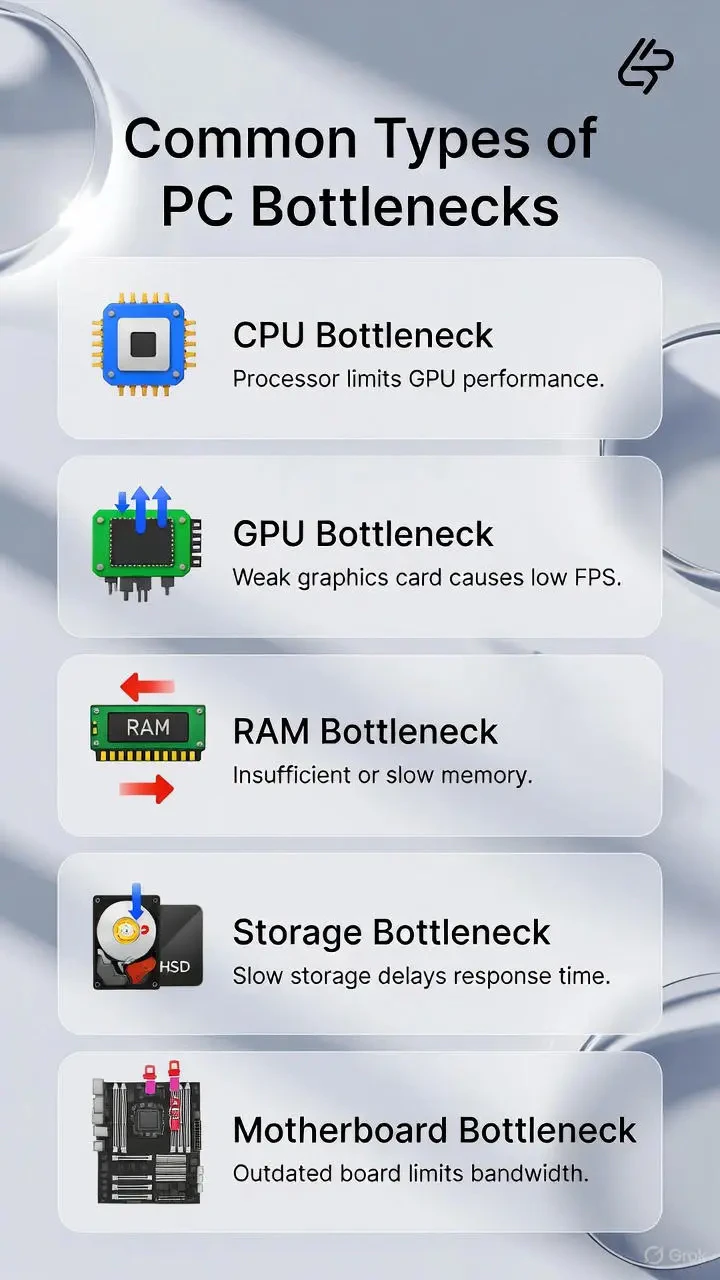
Definition: The PC Bottleneck Calculator is a sophisticated hardware diagnostic and simulation platform categorized as a Technical Performance Analyzer. It utilizes a multi-variable algorithm to evaluate the synergy between critical computer components, including the Central Processing Unit (CPU), Graphics Processing Unit (GPU), Random Access Memory (RAM), and storage subsystems. By simulating data throughput and processing cycles, the tool identifies architectural constraints that impede maximum system efficiency.
Core Value Proposition: The primary objective of this tool is to prevent "performance throttling" by ensuring a balanced hardware configuration. It exists to eliminate the guesswork in PC building and upgrading by providing a data-driven bottleneck percentage. Primary keywords addressed include "PC bottleneck test," "CPU GPU balance checker," "gaming performance optimization," and "hardware upgrade advisor." It serves as a preemptive diagnostic tool to ensure that high-capital investments in components like the NVIDIA RTX 50-series or AMD Ryzen 9000-series are not wasted due to legacy secondary hardware.
Main Features
Multi-Component Heuristic Analysis: Unlike basic calculators that only compare CPU and GPU clock speeds, this tool integrates a comprehensive stack including RAM capacity (up to 128GB DDR5), storage interface speeds (NVMe Gen5 vs. SATA SSD), and operating system overhead (Windows 11/12). The algorithm calculates the "bandwidth delta" between components to determine which part of the pipeline—Instruction Fetch, Geometry Processing, or Texture Mapping—is the primary point of failure.
2026 Next-Gen Hardware Database: The platform features an updated library of cutting-edge hardware, including the RTX 5090, RTX 5080 (Blackwell architecture), and Ryzen 9 9950X3D. By incorporating the latest IPC (Instructions Per Clock) data and TBP (Total Board Power) metrics, the calculator provides forward-looking insights for builders planning systems for the next generation of software and AI-driven applications.
Context-Specific Performance Modeling: The tool allows users to toggle between distinct workloads: Gaming, Content Creation/Rendering, and AI/Machine Learning. Since a "GPU bottleneck" is often desirable in 4K gaming but detrimental in 3D rendering or AI training, the calculator adjusts its sensitivity thresholds based on the selected primary use case to provide context-aware recommendations.
Resolution and API Scaling: The calculator factors in display resolution from 720p to 8K. It accurately reflects the technical shift where lower resolutions (1080p) place a higher interrupt load on the CPU, while higher resolutions (4K/8K) saturate the GPU’s VRAM bandwidth and CUDA/Stream processors, allowing users to see how a bottleneck "shifts" based on their monitor setup.
Problems Solved
Resource Underutilization (The "Ghost" Lag): Many users experience stuttering or micro-stutters despite having expensive hardware. The calculator identifies when a mid-range CPU cannot feed data fast enough to a high-end GPU, a phenomenon known as "CPU Starvation," saving users from troubleshooting software when the issue is architectural.
Inefficient Capital Expenditure: PC builders often overspend on a flagship GPU while neglecting the CPU or RAM. This tool solves the problem of "unbalanced budgeting" by showing that a cheaper GPU paired with a compatible CPU often yields higher stable FPS than a mismatched flagship-entry-level pairing.
Target Audience:
- Hardcore Gamers and E-sports Competitors: Seeking to maximize frame rates and minimize input latency.
- Content Creators and Video Editors: Needing to balance multi-core CPU performance with GPU acceleration for 8K video timelines.
- PC Hardware Enthusiasts and Builders: Using the tool as a pre-purchase verification step for "Bottleneck-free" builds.
- System Integrators (SIs): Ensuring that pre-built configurations offered to customers are technically sound and optimized for value-to-performance ratios.
- Use Cases:
- Pre-Build Verification: Checking if a Ryzen 7 9850X3D will bottleneck an RTX 5090 at 1440p before purchasing.
- Upgrade Path Mapping: Determining if adding 32GB of DDR5 RAM or switching to an NVMe Gen5 SSD will yield a higher performance gain than a marginal GPU overclock.
- Troubleshooting Low FPS: Analyzing why a system underperforms in demanding titles like Cyberpunk 2077 or during heavy AI model local inference.
Unique Advantages
Precision Percentage Reporting: Instead of vague "Good/Bad" ratings, the tool provides a granular percentage (e.g., 18% Minor Bottleneck). This allows users to quantify the exact amount of performance being "left on the table" and decide if the cost of an upgrade justifies the percentage gain.
Integrated Knowledge Base: The tool is paired with a library of over 180 technical guides. This bridges the gap between raw data and actionable intelligence, teaching users about PCIe lane limitations, XMP/DOCP memory profiles, and thermal throttling—factors that traditional calculators ignore.
Dynamic Resolution Impact Analysis: It is one of the few tools that explicitly demonstrates how increasing resolution can actually "fix" a CPU bottleneck by shifting the workload to the GPU, providing a zero-cost solution for users with imbalanced systems.
Frequently Asked Questions (FAQ)
What is a safe bottleneck percentage for a gaming PC? A bottleneck percentage between 0% and 15% is considered optimal for modern gaming. No system is perfectly balanced at 0% across every single application, but staying under 15% ensures that you are receiving the vast majority of the performance you paid for without significant stuttering.
Does a bottleneck calculator account for RAM speed? Yes, our advanced PC bottleneck calculator factors in RAM capacity and generation (DDR4 vs. DDR5). Slow or insufficient RAM can create a "memory bottleneck" where the CPU is forced to wait for data, leading to a higher reported bottleneck percentage even with a powerful processor.
Can I fix a CPU bottleneck without buying new hardware? In many cases, yes. You can reduce a CPU bottleneck by increasing your game resolution (shifting load to the GPU), closing resource-heavy background applications, enabling XMP/DOCP in the BIOS to increase RAM speed, or safely overclocking your processor to improve data throughput.
Is a GPU bottleneck better than a CPU bottleneck? For gaming, a slight GPU bottleneck is generally preferred. This means your graphics card is working at 99-100% capacity, providing the maximum possible visual fidelity, while your CPU has enough "headroom" to handle background tasks and OS interrupts without causing frame drops or lag.
Why does my bottleneck change when I switch from 1080p to 4K? At 1080p, the GPU finishes rendering frames so quickly that it must wait for the CPU to prepare the next set of instructions, often causing a CPU bottleneck. At 4K, the number of pixels increases fourfold, significantly slowing down the GPU's render time and allowing the CPU to easily keep up, which usually shifts the bottleneck to the GPU.